Quickstart: Create Your First Payment
This guide helps you create your first successful payment transaction in the Sandbox environment. You'll authenticate with the API, submit a payment request, and verify the transaction status—all in a few minutes.
Requirements
Before you begin, ensure you have:
- Sandbox credentials:
client_idandclient_secret(available in the developer portal) - The Sandbox base URL:
https://api-sbx.globalgetnet.com
Tip: Use test cards to simulate different payment scenarios in Sandbox.

Step 1: Get a sandbox credential
Important: Obtaining theclient_idandclient_secretdiffers depending on the region you are located in. Please contact your manager for more information.
To generate the credential, at the Getnet home page, follow the steps below:
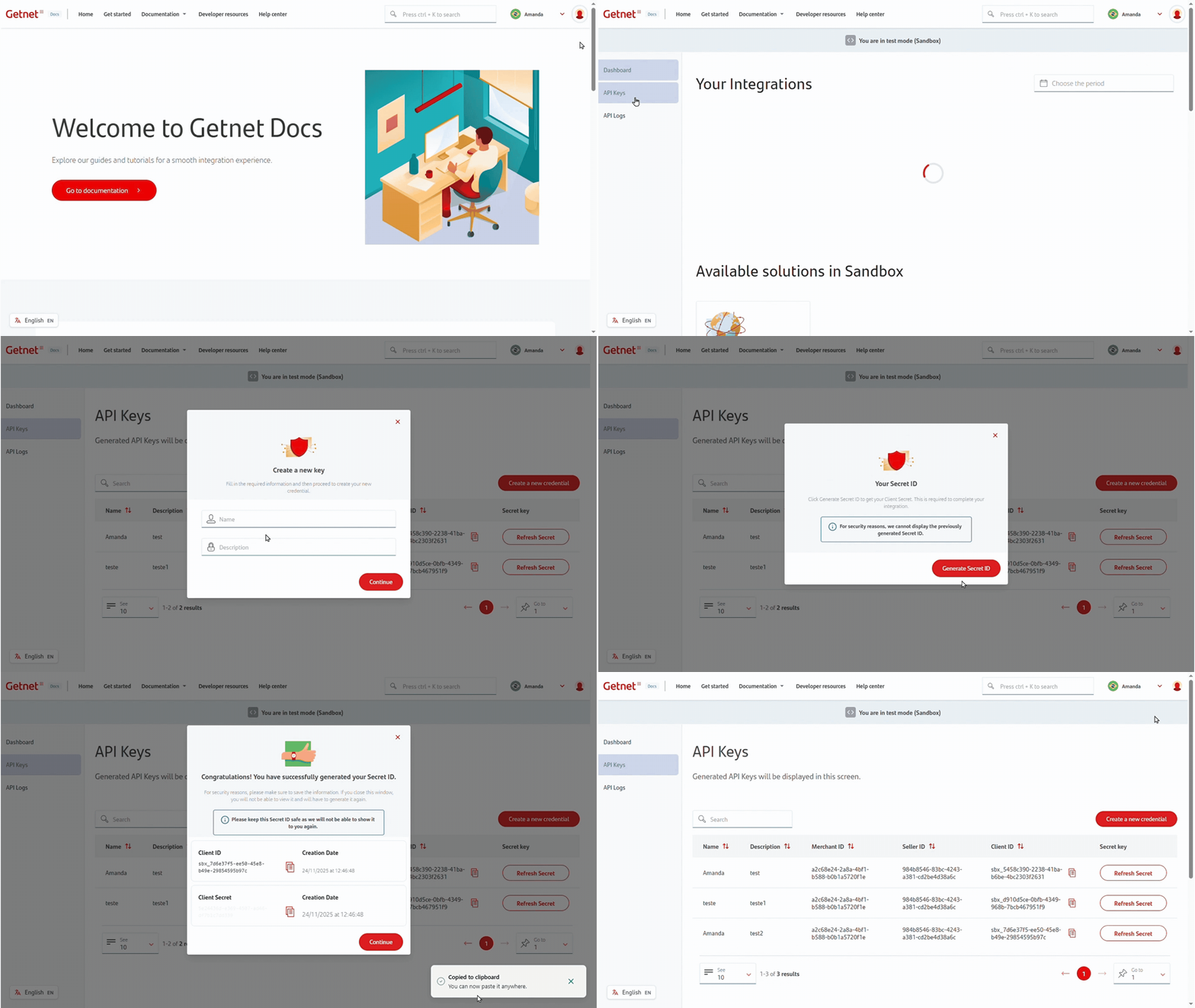 Click on the User area.
- Select Developer Dashboard.
- In the side menu, select API Keys.
- Click Create a new credential.
- Fill in the Name and Description fields.
- Click Continue.
- In the warning, click Generate Secret ID.
- Copy the client_secret, as it will not be visible again after it is generated.
- Click Continue.
Your credential has been successfully created.
Info: If you lose the client_secret key, press Refresh secret to generate a new one.
Step 2: Get an Access Token
Authenticate with the API using your credentials. Combine your
client_id and client_secret with a colon (:), Base64 encode the result, and use it in the Authorization header.bash
curl --request POST \
  --url https://api-sbx.globalgetnet.com/authentication/oauth2/access_token \
  --header 'authorization: Basic <BASE64(client_id:client_secret)>' \
  --header 'content-type: application/x-www-form-urlencoded' \
  --data grant_type=client_credentials
bash
curl --request POST \
  --url https://api-sbx.globalgetnet.com/authentication/oauth2/access_token \
  --header 'authorization: Basic <BASE64(client_id:client_secret)>' \
  --header 'content-type: application/x-www-form-urlencoded' \
  --data grant_type=client_credentials
The response includes an
access_token that expires in approximately one hour:json
{
  "access_token": "eyJ0eXAiOiJKV1QiLCJraWQiOiI1amhLMy9xK0ZpK0tTRkIrRUwwN3VhMFYwdGM9IiwiYWxnIjoiUlMyNTYifQ...",
  "scope": "digital-platform-sbx:gateway-api",
  "token_type": "Bearer",
  "expires_in": 3599
}
json
{
  "access_token": "eyJ0eXAiOiJKV1QiLCJraWQiOiI1amhLMy9xK0ZpK0tTRkIrRUwwN3VhMFYwdGM9IiwiYWxnIjoiUlMyNTYifQ...",
  "scope": "digital-platform-sbx:gateway-api",
  "token_type": "Bearer",
  "expires_in": 3599
}
For detailed authentication steps, see the Authentication guide.
Step 3: Create a Payment
Create a single-step payment that authorizes and captures the funds in one operation. Replace the placeholders with your actual values:
<ACCESS_TOKEN>- The token from Step 1<UUID>- A unique idempotency key (generate a new UUID for each payment)
bash
curl --request POST \
  --url https://api-sbx.globalgetnet.com/dpm/payments-gwproxy/v2/payments \
  --header 'authorization: Bearer <ACCESS_TOKEN>' \
  --header 'content-type: application/json' \
  --header 'x-transaction-channel-entry: XX' \
  --data '{
  "idempotency_key": "63c7f8ee-51a6-470d-bb76-ef762b62bfb9",
  "order_id": "ORDER-QUICKSTART-001",
  "data": {
    "amount": 10000,
    "currency": "BRL",
    "payment": {
      "payment_method": "CREDIT",
      "transaction_type": "FULL",
      "number_installments": 1,
      "card": {
        "number": "5155901222260000",
        "expiration_month": "12",
        "expiration_year": "30",
        "cardholder_name": "JOHN TEST",
        "security_code": "123"
      }
    },
    "customer": {
      "email": "customer@example.com"
    }
  }
}'
bash
curl --request POST \
  --url https://api-sbx.globalgetnet.com/dpm/payments-gwproxy/v2/payments \
  --header 'authorization: Bearer <ACCESS_TOKEN>' \
  --header 'content-type: application/json' \
  --header 'x-transaction-channel-entry: XX' \
  --data '{
  "idempotency_key": "63c7f8ee-51a6-470d-bb76-ef762b62bfb9",
  "order_id": "ORDER-QUICKSTART-001",
  "data": {
    "amount": 10000,
    "currency": "BRL",
    "payment": {
      "payment_method": "CREDIT",
      "transaction_type": "FULL",
      "number_installments": 1,
      "card": {
        "number": "5155901222260000",
        "expiration_month": "12",
        "expiration_year": "30",
        "cardholder_name": "JOHN TEST",
        "security_code": "123"
      }
    },
    "customer": {
      "email": "customer@example.com"
    }
  }
}'
A successful payment returns a response with
status: "APPROVED":json
{
  "payment_id": "053de7f9-3725-437b-bdfc-bbf3ed0acb75",
  "order_id": "ORDER-QUICKSTART-001",
  "amount": 10000,
  "currency": "BRL",
  "status": "APPROVED",
  "payment_method": "CREDIT",
  "received_at": "2025-01-15T10:30:00.000Z"
}
json
{
  "payment_id": "053de7f9-3725-437b-bdfc-bbf3ed0acb75",
  "order_id": "ORDER-QUICKSTART-001",
  "amount": 10000,
  "currency": "BRL",
  "status": "APPROVED",
  "payment_method": "CREDIT",
  "received_at": "2025-01-15T10:30:00.000Z"
}Note: The example uses a test card number. In Sandbox, you can use various test cards to simulate different scenarios.
Step 4: Verify the Payment (Optional)
Check the transaction status using the Get Transaction endpoint with the
payment_id from the response:bash
curl --request GET \
  --url https://api-sbx.globalgetnet.com/dpm/hub-payment-info/v1/payments/info/<PAYMENT_ID> \
  --header 'authorization: Bearer <ACCESS_TOKEN>'
bash
curl --request GET \
  --url https://api-sbx.globalgetnet.com/dpm/hub-payment-info/v1/payments/info/<PAYMENT_ID> \
  --header 'authorization: Bearer <ACCESS_TOKEN>'
Troubleshooting
401 Unauthorized: Your access token may have expired. Request a new token and try again.
422 Validation Error: Check that all required fields are present:
idempotency_key(unique for each payment)order_iddata.amount(in cents)data.currencydata.payment.payment_method(CREDITorDEBIT)data.payment.transaction_type(FULL)data.payment.number_installments(1for single payment)- Complete card details
Payment Declined: Try a different test card or adjust the amount.
Next Steps
Congratulations! You've created your first payment. To learn more:
- Follow the complete Single-Step Payment guide for detailed implementation and production requirements.
- Explore Pre-authorized Payments for two-step flows.
On this page
Quickstart: Create Your First Payment